



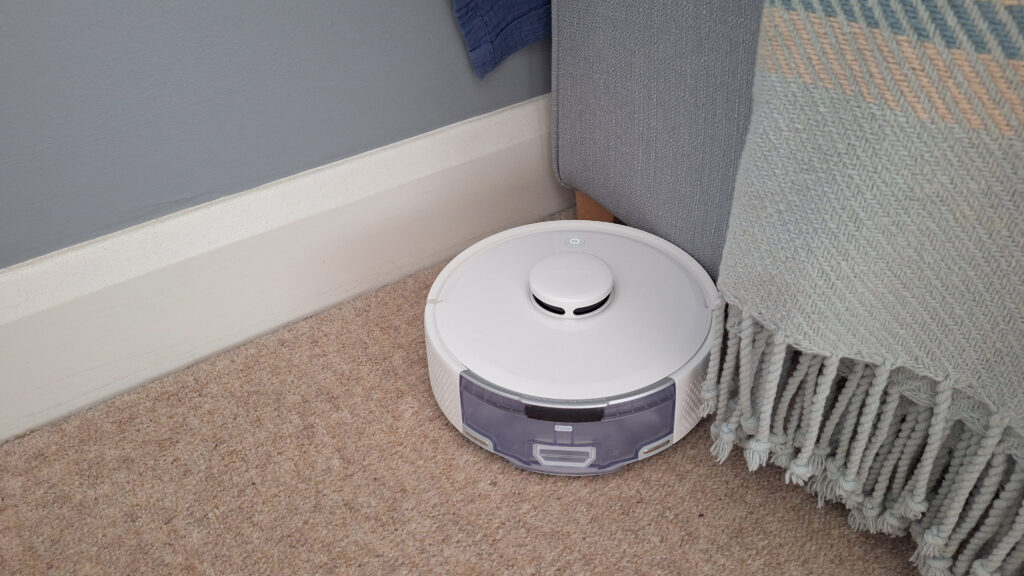
Many users of robotic vacuum cleaners face the frustrating issue of repeated connectivity losses. Without a stable connection to the internet or their base station, these devices struggle to perform tasks such as following cleaning schedules or responding to commands. Fortunately, there are several straightforward solutions to restore connectivity. While the specific steps may vary across different models, the following guidelines provide a general approach applicable to most robotic vacuums.
Basic Checks Before Troubleshooting
Start by confirming that the vacuum’s charging dock is plugged in and receiving power. Check for any notifications or status lights on both the dock and the vacuum. If the lights indicate a problem, such as a red light on the Eufy X10, it may signify issues ranging from connectivity problems to a full dust bin.
Next, ensure that your smartphone is connected to the same Wi-Fi network as the vacuum. Recent changes to your network settings, such as a new router or modifications to existing equipment, may disrupt the connection.
Rebooting and Resetting the Vacuum
Most robotic vacuums feature a physical method for performing a quick reboot or a more thorough reset. This can often involve pressing and holding two buttons on the device. For example, Eufy and Dreame models typically use the Spot Clean and Recharge buttons, while Roborock models require the Self-Clean and Charge Mode buttons.
Once you hear a beep or voice prompt signaling the reset, open the accompanying smartphone app and follow the instructions to reconnect the vacuum to your Wi-Fi network. Rest assured that this process will not erase your settings or cleaning map.
In some models, like the Eufy X10, a pinhole button located beneath the cover allows for a manual reboot without losing data.
Software and Firmware Updates
Keeping your vacuum’s software up to date is essential for maintaining connectivity. Check your smartphone’s app store for updates, and then navigate to the vacuum’s app to verify if any firmware updates are available. Firmware updates may take longer than typical app updates, and if connectivity issues are present, it is advisable to attempt a reboot first.
Force-closing the app, rebooting your smartphone, or reinstalling the app can also help establish a fresh connection without resorting to a factory reset unless absolutely necessary.
Optimizing Dock Location and Wi-Fi Band
The vacuum’s charging dock should ideally be placed in a location that ensures a clear line of communication with your Wi-Fi router. If you experience connectivity problems, consider relocating the dock to improve signal strength. Be mindful of large metal objects, such as refrigerators or washing machines, which can interfere with Wi-Fi signals.
Most robotic vacuums connect primarily to 2.4 GHz Wi-Fi networks. If your router is configured solely for 5 GHz, the vacuum will not connect. To troubleshoot, disable the 5 GHz band temporarily and see if the vacuum connects successfully. If it does, consider creating separate networks for each frequency to simplify connectivity.
When All Else Fails: Factory Reset
If none of the previous solutions work, a factory reset might be necessary. This process will remove your cleaning map and scheduled settings, returning the vacuum to its original condition. The factory reset process varies by brand.
For example, some models can be reset by pressing the Start and Home buttons for up to 15 seconds. Ecovacs Deebot owners may need to press a pinhole reset button found under the robot’s lid, while Roborock models require the Home button to be pressed in conjunction with the reset button.
Many Roomba models can be reset via the app; however, if connectivity issues prevent this, holding the Home button for five seconds will initiate the factory reset process.
If you opt for a factory reset, refer to the instructions provided with your robotic vacuum or consult the manufacturer’s website for guidance on the specific button combinations required. Additionally, if you manage to connect via the app intermittently, removing the robot from your system often acts as a factory reset, allowing you to set it up anew.
By following these practical steps, users can significantly improve their robotic vacuum’s performance and ensure a reliable cleaning experience.